By Athira
n8n (pronounced “n-eight-n”) is a workflow automation tool that can make your apps work together automatically. You build a simple flow on a visual canvas when something happens, like a form being submitted, n8n does the next job for you, such as sending an email or saving the details to a sheet. You need no heavy coding to start, and it supports AI, which makes it popular with beginners and professionals alike.
In this guide you will learn:
-
- What workflow automation is and why it saves time
-
- Whether n8n is free
-
- How to schedule a message in n8n with the Schedule Trigger and a cron expression
-
- The beginner mistakes that stop scheduled workflows from running
A few days ago I set up an n8n workflow to send a good morning message at 7 AM on a date I picked. I clicked Execute workflow, and the message arrived instantly. Not tomorrow. Right then.
I was confused for a minute, and then I understood. If you are new to n8n, you will probably hit the same moment. So this guide covers two things together: what n8n actually is, and how to build and schedule your first automation without falling into the beginner traps.
I teach digital marketing and automation, so I have written this the way I would explain it in a classroom: simple words, real examples, and the mistakes included.
What Is Workflow Automation? A Simple Explanation
Imagine you run a small coaching institute. A student fills in an enquiry form. Then you:
-
- Copy their details into a spreadsheet, by hand.
-
- Send them a thank-you email, by hand.
-
- Tell your sales person about the new lead, by hand.
Now imagine 20 enquiries a day. That is a lot of copying and pasting, and none of it needs real thinking.
Automation means you show the computer these steps once, and it repeats them every single time. You stop doing the work, and you become the person who designed it.
Every automation, no matter how big, has the same shape: when this happens, do that.
-
- A new form entry arrives, so add a row to the sheet and send an email.
-
- A payment comes in, so create an invoice.
-
- It is 9 AM, so send me a report.
The first part is the trigger. The second part is the action.
You already use automation all the time. When you place a food order, the restaurant is notified, a delivery partner is assigned, and you get “order confirmed” and “on the way” messages. Nobody phoned the restaurant, and nobody typed those messages. Something happened, so something else was done.
AI Automation vs Normal Automation: What Is the Difference?
Normal automation follows fixed rules. It works well with neat, predictable data, like a form where the customer picks “Refund” from a dropdown. It gets stuck on messy human messages like this:
“hii, i wanna knw the price of ur social media service pls??”
AI automation can read that, understand that it is a sales enquiry (and not a complaint), and choose the right action. A simple way to remember it: automation is the hands, AI is the brain. The hands do the work, and the brain decides what work to do.
What Is n8n and How Does It Work?
n8n (you say it “n-eight-n”) is a tool that lets you build automations visually. You drag boxes onto a canvas, connect them with lines, and each box does one job. You connect your apps, like Gmail, Google Sheets, Telegram, or WhatsApp, and tell them what to do and when. No heavy coding is needed to begin, but you can add code later when you want more control.
It is also strong when you want to add AI to your workflows, which is why it is popular right now.
Is n8n Free? n8n Pricing Explained for Beginners
All three tools let you start for free, and all three charge once you use them seriously. The interesting difference is how they count usage.
As I write this, there are three ways to get n8n:
-
- Free trial: 14 days, nothing to install, and no card needed.
-
- Paid plan: it does not expire. When I last checked, it started at around €24 a month.
-
- Run it yourself: free, but a bit technical. It is like cooking at home: you set up the kitchen first.
Plans and prices change often, so check n8n’s pricing page before you decide. One warning from my own teaching experience: if you start the trial and do not move to a paid plan by day 14, the trial workspace is deleted along with everything you built. Practise daily, and download your work before the trial ends.
What Can You Automate with n8n? Real-World Examples
Here are practical workflows beginners can build in their first few weeks:
-
- Form to email: When someone fills in an enquiry form, n8n sends them a thank-you email straight away. I built this workflow myself right after my scheduled message.
-
- Lead capture: Save every new lead from a form or an ad into Google Sheets, and notify yourself on Telegram or WhatsApp.
-
- Scheduled reports: Send yourself a daily or weekly summary at a fixed time, using the same Schedule Trigger you will learn below.
-
- Content workflows: Use AI nodes to draft captions, summarize emails, or prepare blog outlines.
-
- Reminders and follow-ups: Message students or clients before a class or after an enquiry.
Each one follows the same pattern: a trigger, then an action. That is why learning one workflow well makes the rest much easier.
How to Schedule a Message in n8n: Step-by-Step Tutorial
Here is what we will make: a workflow that sends you a good morning email at a time you choose. It has just two nodes, a trigger and an action.
Step 1: Create Your n8n Account
Go to n8n.io, click Get Started, and sign up with your email. Pick a simple workspace name, like your own name. Answer the few quick questions however you like, since none of it affects your account. In a minute your workspace opens.
Step 2: Create a New Workflow
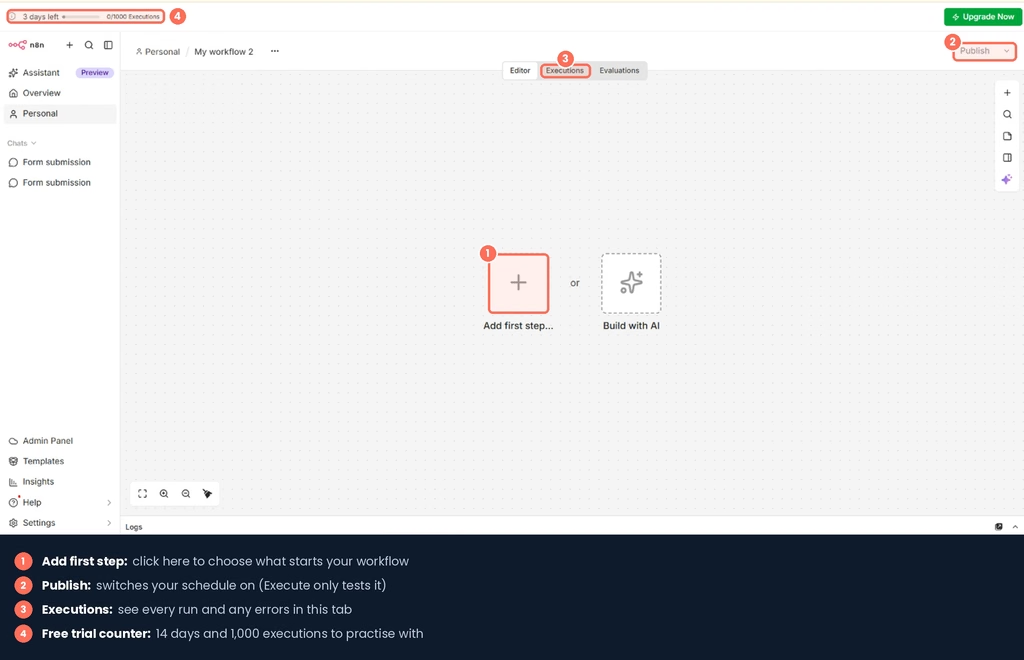
Click to create a new workflow and give it a name such as “Daily Hello”. You will see an empty canvas with an Add first step button. Every workflow starts here.
Step 3: Add the Schedule Trigger (Your Morning Alarm)
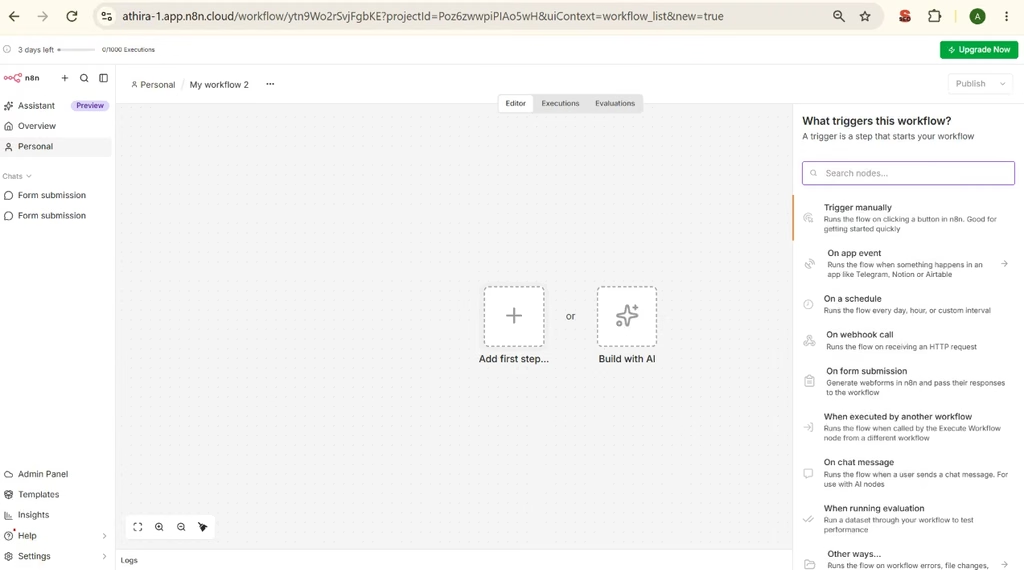
The trigger is the alarm clock of your workflow. Click Add first step, and you will see options such as “On app event”, “On a schedule”, and “On webhook call”. Choose On a schedule, which runs the flow every day, hour, or custom interval.
Now set when it should run. For a simple daily message, open Trigger Rules and set the interval to Days, with Days Between Triggers as 1. Then choose the hour and minute, for example 7 AM.
Want it on one specific date, like 15 October? Choose Custom (Cron) as the interval and use this expression:
0 0 7 15 10 *
Read it from left to right as second, minute, hour, day of month, month, and day of week. So it means 7:00:00 AM on 15 October. The * at the end means “any weekday”.
A few other patterns to try:
-
- Every day at 9 AM: 0 0 9 * * *
-
- Weekdays at 8:30 AM: 0 30 8 * * 1-5
-
- Every Monday at 7 AM: 0 0 7 * * 1
Step 4: Add the Gmail Action Node
Click the + after the trigger. n8n asks, “What happens next?” You will see groups such as AI, Action in an app, Data transformation, and Flow. Choose Action in an app, search for Gmail, and pick Send a message.
Step 5: Connect Your Gmail Credentials
This is where the credential comes in. Think of it as the key to your Gmail. Click Sign in with Google and follow the prompts. If nothing opens, click the button again. Once connected, your Gmail account appears in the Credential field.
Step 6: Write the Email Message
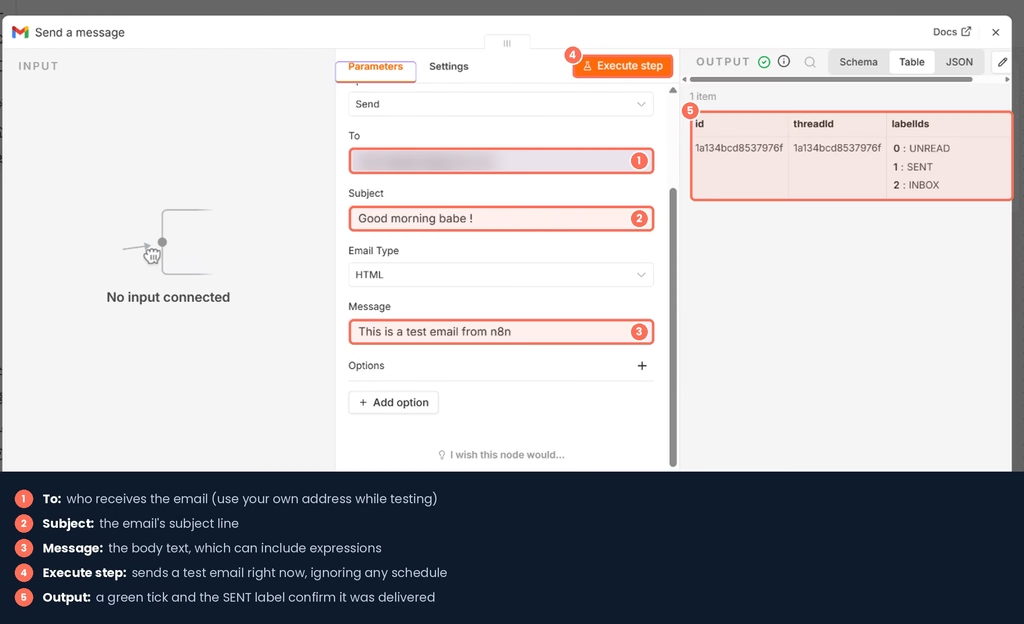
Fill in the To address (use your own email while testing), a Subject such as “Good morning from n8n”, and a message like “Hello! This email was sent automatically by my first n8n workflow.”
Step 7: Personalize the Email with an n8n Expression
Here is a small trick that makes beginners smile. Your subject line does not have to be fixed text. You can make part of it change automatically.
The trigger passes data to the next node: the date, the time, the day of the week, and the timezone. You can drop that data into your email with an expression. For example, a subject like this:
Good morning, today is {{ $json[‘Day of week’] }}
will show up as “Good morning, today is Monday” on Monday, “Tuesday” on Tuesday, and so on. An expression works like a fill-in-the-blank: only the blank changes.
Step 8: Fix Common n8n Errors
You will see errors. Mine said “Bad request: Invalid To header”, and the cause was a small mistake in the recipient field. It was like writing the wrong address on a parcel: the courier did their job, but the parcel had nowhere to go.
An error is not a failure. Read the message, fix the field it points to, and run the step again.
Execute Workflow vs Publish in n8n: The Beginner Mistake to Avoid
This is what caught me, and it catches almost everyone.
-
- Execute workflow is the test button. It runs the workflow right now, ignoring the schedule. That is why my “scheduled” message arrived instantly.
-
- Publish is what switches the schedule on. After you publish, n8n waits and runs the workflow by itself at the time you set.
So the right order is: build, test with Execute, check the result, and then Publish. And do not keep clicking Execute afterward, or you will send yourself extra messages.
n8n FAQs for Beginners
Do I need to know coding to use n8n? No. You can build useful workflows by dragging nodes and filling in fields. Coding becomes helpful later, but it is not a starting requirement.
Is n8n better than Zapier? It depends on your goal. Zapier is easier for quick, simple automations. n8n takes longer to learn, but it handles more complex workflows and works well with AI.
Why did my scheduled workflow run immediately? You probably clicked Execute workflow, which is a manual test run. The schedule only applies after you publish the workflow.
Why didn’t my scheduled workflow run at all? Check that it is published, that the timezone is correct, and (if you self-host) that your n8n instance was running at that time.
Will my workflow stop after the first run? No. A scheduled workflow keeps running on its schedule until you unpublish it.
Is n8n free to use? You can start free with a trial, or self-host for free if you are comfortable with the technical setup. Paid plans exist for continued use on the cloud, so check the current pricing before you commit.
Conclusion: Start Small with n8n Automation
Automation is not about replacing people. The jobs stay; the boring, repeating part goes to the computer, and somebody still has to design and set it up. If you can learn to build workflows, you become that somebody, whether you want to freelance, grow in your job, or run your own business with fewer hands.
Start small. Send yourself one good morning email. Everything bigger is just more of the same pattern: when this happens, do that.
If you try this and get stuck, tell me where in the comments, and I will help you fix it.